
How to Install BMW Z4 E89 2009–2016 Aftermarket Radio Upgrade with CarPlay, Android Auto, DAB & GPS

If you drive a BMW Z4 E89 (2009-2016), you may find the factory infotainment system outdated — especially without Apple CarPlay, Android Auto, modern navigation, or streaming support. This guide shows you how to remove the factory unit and install a powerful aftermarket Android touchscreen radio upgrade with CarPlay, Android Auto, DAB radio, GPS navigation, Bluetooth, Wi-Fi, and more.
What This Aftermarket Head Unit Offers
This BMW Z4 E89 Android head unit is designed to fit beautifully into your dash, supporting both:
-
BMW units with a factory screen & iDrive CIC system
-
Z4 dashboards with a storage box (no screen/iDrive)
It’s completely plug-and-play — no wire cutting or coding is needed.
Where to Buy
You can purchase this upgrade from Sigma Car Stereo here:
BMW Z4 E89 Aftermarket Radio Upgrade (CarPlay, Android Auto, DAB)
https://sigmacarstereo.com/bmw-z4-E89-aftermarket--radio-upgrade-android-touchscreen-gps-navigation-carplay-dab Sigma Car Stereo
Optional add-ons include:
-
Wireless CarPlay adapter
-
Backup camera
-
DAB+ digital radio dongle
-
OBD2 diagnostic adapter

Key Features
-
10.25-inch (or optional 12.3”) touchscreen display
-
Android OS (Android 13) with app downloads from Google Play
-
Bluetooth and phone connectivity (iPhone & Android)
-
Apple CarPlay & Android Auto (wireless + wired)
-
Built-in GPS with free navigation maps included
-
Wi-Fi and optional 4G LTE support
-
USB/SD ports for media playback
-
Steering wheel control and CANBUS integration
-
Works with original reversing camera and fiber-optic amplifier
-
DAB+ radio support available via dongle
Pro Tip: If your car originally came with a CIC screen and iDrive knob, you can still use the iDrive controller for both factory and Android menus.
Tools You’ll Need
-
Trim removal tool set
-
Philips and flat-head screwdrivers
-
Small socket set
-
Optional zip ties (for clean wiring)
Step-by-Step Installation Guide



1. Safety First
Disconnect the vehicle battery before touching any electronics.
2. Remove Dashboard Trim
Use plastic trim removal tools to gently pry off the center dash trim around the factory radio and display.
3. Uninstall Factory Head Unit
Remove screws securing the factory unit. Slide the OEM radio out carefully and disconnect all wiring harnesses.
4. Connect Aftermarket Harness
Plug the aftermarket wiring harness and CANBUS decoder into the existing OEM connectors — this unit doesn’t require cutting wires. Sigma Car Stereo
✔ Retains factory BCM features like steering wheel controls and car info.
5. Install GPS Antenna
Position the GPS antenna in the dash or windshield corner for strong satellite reception.
6. Test Connections Before Mounting
Reconnect the battery temporarily and power on the new head unit.
Check that CarPlay, Android Auto, Bluetooth, GPS, and audio are working.
7. Final Fitment
Once tested, properly seat the new unit in the dash and replace all trim panels. Ensure all clips and screws are secure.
Tips for Best Results
-
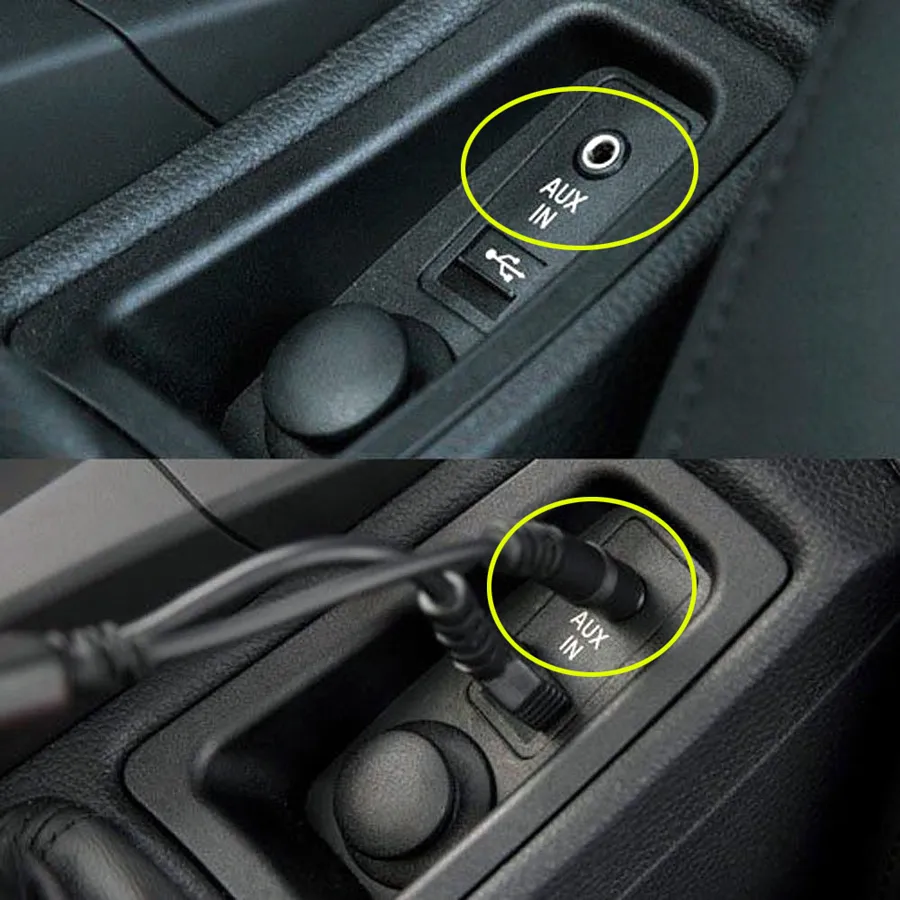
If your Z4 doesn’t have AUX IN, installation won’t function properly — be sure your car has a 6FL AUX port before purchasing. Sigma Car Stereo
-
Switching between the original BMW CIC interface and Android system is usually done via the iDrive MENU button or a screen icon.
Installation photo

Frequently asked questions:
Is this product plug-and-play? Do I need to program or code my BMW? Do I need to buy an external GPS antenna? Can I still check the car info on the OEM screen?
Answer: Yes, it is plug-and-play, it has the same plugs and harness as the original BMW system. You do not need to program your car when installing. All necessary accessories are included in the package. You do not need to buy anything else to make it work. You can still check the original BMW car computer info as before.
How do I switch the new Android system to the original BMW CIC interface?
Answer: Please tap the “Car-info” icon on the home screen OR hold press (3 seconds) MENU button on iDrive to switch to the original CIC interface.
How do I switch the original BMW CIC interface to the new Android system?
Answer: Please tap the screen or hold the (3 seconds) MENU button on iDrive.
Why does it show “No signal” when tapping“Car-info” or switching back to the original BMW interface?
Answer: Please check the LVDS port. Make sure you connect the LVDS plug (removed from the OEM screen) to the new screen.

Why is there no audio from the new Android system?
Answer:
A. Please check the AUX-IN cord. Make sure it is plugged in the AUX-IN port on your car.
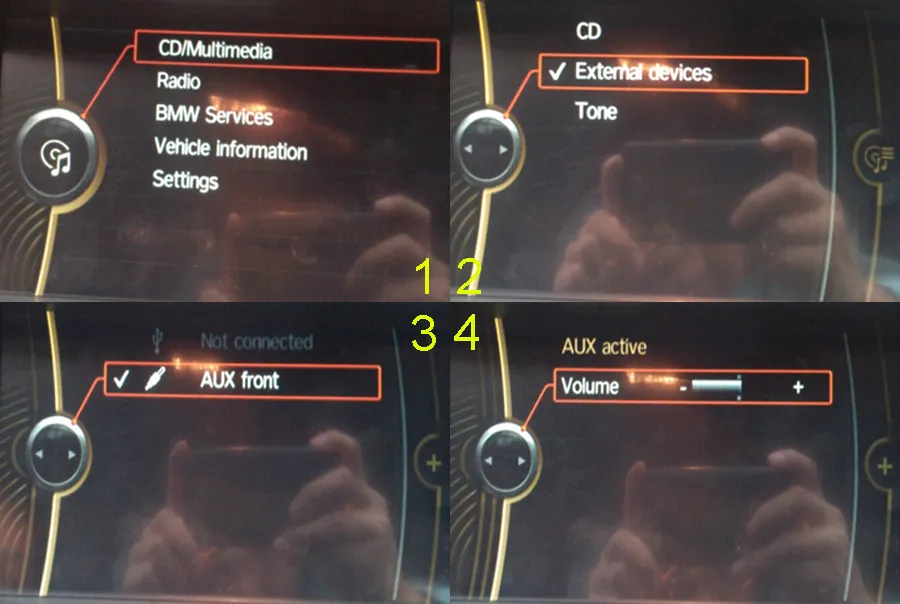
B. And also you need to activate the AUX-IN function.
CD/Entertainment/External devices/External audio input (AUX front)/activate.
Why does the Sirius/XM radio, original car computer info and factory camera does not display? Why does the AUX-IN volume stucks on zero and not adjustable?
Answer: Please check the fiber optics plug, you need to move it from the original connector to the new connector we provided.

Final Thoughts
Upgrading your BMW Z4 E89’s infotainment system brings modern usability into an aging vehicle. With touchscreen navigation, wireless CarPlay/Android Auto, DAB radio, and app access, your daily drive becomes more connected and enjoyable.
If you want me to also include installation images, step diagrams, or a printable PDF, just let me know!
Contact Us for BMW Z4 Android Radio Upgrade
WhatsApp: https://api.whatsapp.com/send/?phone=00447591940624
Facebook: https://www.facebook.com/sigmacarstereo
Email: info@sigmacarstereo.com
Website: https://sigmacarstereo.com/
Need help choosing the right model or installation support? Contact us anytime—we’re happy to help!
Leave a Comment