
How to Install BMW X1 E84 Head Unit Upgrade?

A new pure Android system screen upgrade for BMW x1 e84 is available now. Compared with the old Wince version, the new BMW x1 e84 head unit comes with a modern Android display, 1920*720 HD touch screen, and aftermarket navigation system. It’s also integrated with wireless Apple carplay and Android auto now, latest BMW ID8 UI.
.jpg)

Latest upgrade with Android 14 system
10.25 inch 1920*720 HD resolution capacitive screen, touch screen
Octa-Cores CPU processor, 64GB storage, 8GB RAM(128GB optional)
GPS navigation, Bluetooth, USB, WiFi, Apple Carplay/Android auto, etc
Shop here: BMW X1 E84 Screen Upgrade Android Carplay
Step-by-step installation guide of BMW X1 Android head unit
Installation is very easy if you have experience before with a similar Android head unit.No matter your BMW x1 head unit is with wince system or android system, BMW x1 e84 android screen installation is more or less the same.
- Use pry tool to disassemble the trim strip at right, then pull out the air vents, disconnect cables behind.


- Remove 2 screws, then take out the storage compartment, disconnect the cable behind.


- Then pry the plastic strips from right to left, take it out, put it aside.


- Now you can pry out the climate control panel, unplug cables behind.
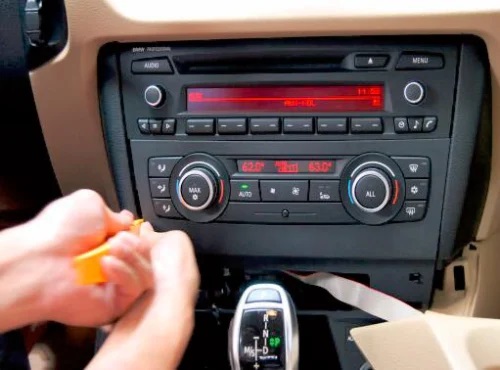

- Next step is to detach the factory radio/cd. Pay attention to 2 screws, remove these screws, so that you can take out the radio and cd.

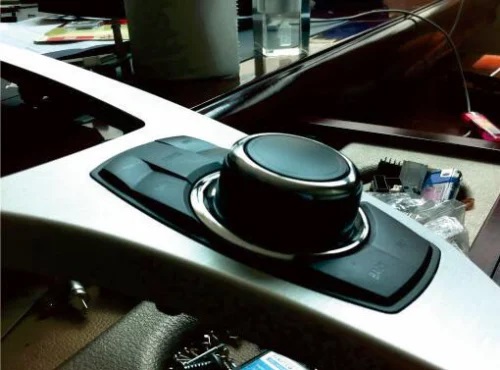
- Disassemble the decorative bar below the shift gear, use a pry knife to pry it out from right to left, then pull it out, so that you can easily install the new control box, please mind the cable for the control box.
- Disconnect your factory wiring harness from the back of radio/cd, then connect your female plug with our new male plug, connect your male plug at the back of radio/cd with our new female plug, there’s a 2 pins small plug which should connect our small speaker.


Attention!!!
If there are fiber optic cables from your original plug which connects to the back of your factory CD, you need to move the fiber optic cables to our new plug and connect them to the same position on the new plug, see below picture:
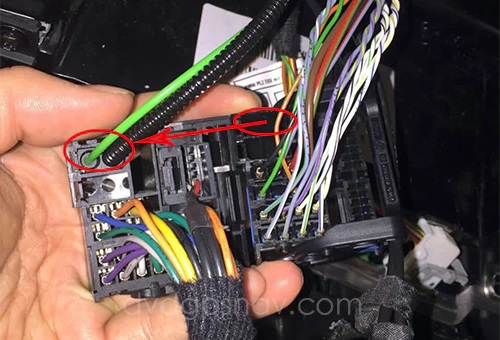
If you did not move the green and black fiber optic cables to our new plug, you will hear heartbeat sound coming out from car speakers after installation.
- Connect all cables, including power adapter cables, red/green/blue/grey plugs, USB cable, control knob cable, GPS antenna, WiFi antenna, RCA cables.
- If you need to connect a back up camera, there’s a green cable for rear view video input.If you connect a back up camera, you also need to connect this BACK wire:

Note: If you don’t connect a back up camera, you don’t need to connect the BACK wire.
For some BMW models, it can not get stable 12V voltage from the reverse light to the camera, it may be flicker screen or no signal while reversing, the solution is by connecting a relay, this has been proved by many of our customers.
User Guides of BMW X1 E84 head unit
- If you want to listen to the radio sound and gps sound at the same time, you can let the gps sound comes out from the small speaker, and radio sound comes from car speakers, how to do that?When the unit plays radio, firstly press this CAR button, then press NAVI button, so the gps sound will come out from our small speaker, and the radio sound comes out from car speakers, see below pic:

- Please note the music sound from the new Android BMW x1 screen unit should be transferred to your car speakers through your car’s aux mode.So there will be no sound for music playing after installation if you don’t turn to aux mode and turn up the aux volume.How to activate the original aux mode and turn up aux volume? Just follow the following steps.Firstly press the AUDIO button from your original CD, then you can turn to AUX function via the right knob, and change the aux volume, make sure it’s not mute.


Note: The aux volume may be lower compared to the radio or CD volume, so you’d better turn up the aux volume to highest level.
- If there’s still no sound from music playing after you turn up the aux volume, your aux wires may not go through factory cd, see below picture:

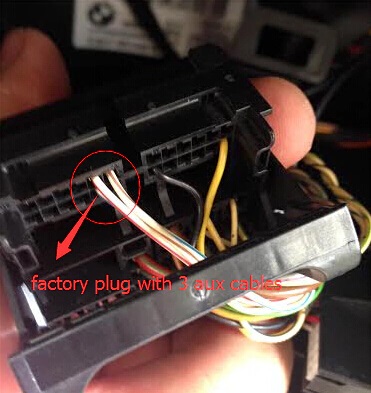

The solution is to get an aux adapter cable from us to connect your aux directly to get sound.
Below is that cable with a blue plug, only if your aux wires don’t go through factory CD, then you can use this cable:

Plug 1 and 2: connect your aux plugs behind your aux port, firstly you will need to detach your aux module, then you can see aux plugs behind, then connect 1 and 2 with them.
Plug 3: connect the back of the new main unit where the blue plug should be.
Plug 4: connect 2 female aux plugs from the aux cables(behind our android screen), red to red, white to white.
Note: there’s also a small black 2 pins plug from the blue plug(this picture does not show), you should connect it with our small speaker.
Still have a question? Sigmacarstereo.com is your best partner to help you install any aftermarket navigation head units.
Email: info@sigmacarstereo.com
2 Comment(s)
Just desire to say your article is as amazing. The clearness in your post is simply excellent and i can assume you're an expert on this subject. Well with your permission let me to grab your RSS feed to keep up to date with forthcoming post. Thanks a million and please carry on the gratifying work.
Blackcoin.co a fully independent review platform with no ownership ties to any casino operator or software provider. Casinos never access your actual account details – they only see anonymous PayID references. Neospin, MrPacho, and SkyCrown consistently rank highest for reliable PayID withdrawal processing based on our transaction testing. This sustainability makes PayID fundamentally different from cryptocurrency payment models." Most importantly, it maintains responsible gambling integrity by working within Australia’s existing regulatory framework rather than circumventing it.
PayID support is only part of the story — players also want real entertainment. Some players enjoy a bright, modern casino with animated mascots and vibrant colours. Our 5-point rating system is supported by in-depth editorial analysis, player-focused benchmarks, and real payment testing. This section helps readers choose casinos not just by brand — but by game quality, fairness, and stability. That’s why we created an entire section showcasing the game studios and technology providers behind top PayID casinos.
PayID leverages your bank’s existing security infrastructure including multi-factor authentication and bank-grade encryption. Some casinos might impose small processing fees (usually 1-2%), but our testing shows less than 5% of PayID-compatible platforms apply these charges. The dual verification – business name display plus bank authentication – creates an unparalleled safety framework for digital payments. When players set limits through their financial institutions, these parameters automatically restrict gambling activity regardless of platform. Your bank provides foundational tools like daily spending limits, session duration caps, and temporary account freezes.
Your bank receives the incoming transfer with the casino’s registered business name displayed. Most transactions complete within 30 seconds, with funds candy96.fun immediately available for gameplay. The casino generates a unique PayID identifier specific to your transaction session.
Upon successful verification, this identifier becomes your permanent PayID reference for all future transactions. You’ll select either your mobile number or email address as the identifier, which your bank then verifies through SMS or email. SkyCrown counters with a comprehensive package totaling $8,000 plus 400 free spins spread across four deposits, maintaining reasonable 25x wagering requirements. Their fourth deposit bonus reaches a staggering 300% match up to $11,000 – exceptionally rare among Australian gambling platforms. Neospin’s industry-leading offer provides a 100% match up to $500 with 50 free spins on first deposit, scaling to impressive totals across subsequent deposits. Some casinos implement tiered reward systems where consistent PayID usage accelerates progression through VIP programs.
Leave a Comment